
As I said in this post, there are plenty of articles on how to do this. This is more of a note for myself, as I have to “re-learn” this every time I need to customize SharePoint.
There are 2 ways (that I know of) that you can add code to every page in SharePoint 2010, 1 by the AdditionalPageHead delegate control, or ,2 by Custom Action. This article is about #1 (see #2 here) using the AdditionalPageHead delegate control.
- Start Visual Studio, and create a new Empty SharePoint Project (uncheck the Create Directory for Solution because you salways create the destination directory yourself)
- Deploy as a Farm Solution (I have not figured what you can and can’t do with sandboxed solutions yet)
- RightClick the Project and Add –> New item –> User Control –Name it. This will create a new folder named ControlTemplates and inside will be your User Control. Looks like this
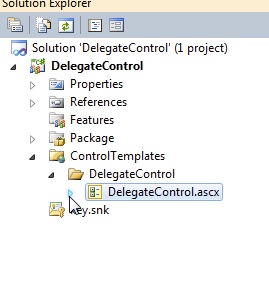
- Edit the new ascx file and add the code you want to put at the top of every page, for example:
<script type="text/javascript" src="/path/to/jquery.js"></script>
- RightCLick the Project and select Add Empty Element and name it at the bottom
- add the following to the elements.xml file. The final should look like this below:
  <Control Id="AdditionalPageHead"
          Sequence="90"
          ControlSrc="~/_CONTROLTEMPLATES/DelegateControl/DelegateControl.ascx" />
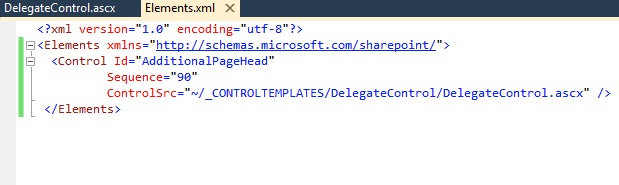
Package everything up and you will now see your reference to jQuery on the top of all pages.
Comments
One response to “How to add custom JavaScript code to all SharePoint 2010 pages (DelegateControl)”
[…] http://www.jbmurphy.com/2012/07/03/how-to-add-custom-javascript-code-to-all-sharepoint-2010-pages-de… […]