
I am working with a site where we could not UpdateUserExperience when moving to 2010. I wanted to check a users permissions, but the icon was missing. To check a users permissions in 2010 with out an updated user experience, you visit : /_layouts/chkperm.aspx
-
SharePoint 2010: How to access check permissions if site was not mounted with UpdateUserExperience
-
I finally did it! 10K+ visits in a month!
Not bad seeing as I was at 2K last year this time!
		 Visits
Today		 373
Yesterday	 504
This month	 10183
December	 9085
November	 9827
October		 9427
September	 9010
August		 9440
July		 9151
June		 8171
May 		 7352
April		 5027
March		 3966
February	 3160
January		 2741
-
PowerShell 3: Using Invoke-RestMethod to refresh a new oAuth 2 token
I wanted to translate this code into powershell. Below is the Powershell code to request a refresh token from Google using oAtuh 2.
$CLEINTID="1234567890.apps.googleusercontent.com"
$CLIENTSECRET="aBcDeFgHiJkLmNoPqRsTuVwXyZ"
$REFRESHTOKEN="1/551G1yXUqgkDGnkfFk6ZbjMLMDIMxo3JFc8lY8CAR-Q"

$URL = "https://accounts.google.com/o/oauth2/token"
$Body= 'client_secret={0}&grant_type=refresh_token&refresh_token={1}&client_id={2}' -f $CLIENTSECRET,$REFRESH_TOKEN,$CLEINTID
Invoke-RestMethod -URI $URL -Method Post -Body $Body
Hope that helps someone.
-
Using cURL, BASH and Google oAuth to access Google Analytics
In this previous post, I used cURL (the command line version) to interact with Google Analytics. I wanted to do the same thing but using oAuth. I took a lot from this page, but there were a few things that I couldn’t get working, and a few things I didn’t know.
Follow Steps 1-6 on this page. These are steps that you need to follow to get your app registered with Google
In step 6, copy down the code, and keep track of it. It needs to be reused every time you need to get a new token. If you loose it, then you need to run step 6 over again. I didn’t know that.
Here is my script. I will jump through the code below it.
#!/bin/bash CODE="4/v6xr77ewYqhvHSyW6UJ1w7jKwAzu&" CLEINTID="1234567890.apps.googleusercontent.com" HEADER="Content-Type: application/x-www-form-urlencoded" CLIENTSECRET="aBcDeFgHiJkLmNoPqRsTuVwXyZ" REDIRECTURI="urn:ietf:wg:oauth:2.0:oob" # I keep the ACCESS_TOKEN and the REFRESH_TOKEN in a file. if [ -s ~/.google ];then ACCESS_TOKEN=$(cat ~/.gauth | grep access_token | awk -F"," '{print $2}' | tr -d ' ') REFRESH_TOKEN=$(cat ~/.gauth | grep refresh_token | awk -F"," '{print $2}' | tr -d ' ') else # not used before NEWTOKEN=$(curl -s -d "code=$CODE&redirect_uri=$REDIRECTURI&client_id=$CLEINTID&scope=&client_secret=$CLIENTSECRET&grant_type=authorization_code" https://accounts.google.com/o/oauth2/token) ACCESS_TOKEN=$(echo $NEWTOKEN | awk -F"," '{print $1}' | awk -F":" '{print $2}' | sed s/\"//g | tr -d ' ') REFRESH_TOKEN=$(echo $NEWTOKEN | awk -F"," '{print $4}' | awk -F":" '{print $2}' | sed s/\"//g | sed s/}// | tr -d ' ') echo access_token , $ACCESS_TOKEN > .google echo refresh_token , $REFRESH_TOKEN >> .google fi EXPIRED=$(curl -s https://www.googleapis.com/oauth2/v1/tokeninfo?access_token=$ACCESS_TOKEN | grep 'invalid_token') if [ "$EXPIRED" ] then echo "EXPIRED" REFRESHRETURN=$(curl -s -d "client_secret=$CLIENTSECRET&grant_type=refresh_token&refresh_token=$REFRESH_TOKEN&client_id=$CLEINTID" https://accounts.google.com/o/oauth2/token) ACCESS_TOKEN=$(echo $REFRESHRETURN | awk -F"," '{print $1}' | awk -F":" '{print $2}' | sed s/\"//g | tr -d ' ') echo access_token , $ACCESS_TOKEN > .gauth echo refresh_token , $REFRESH_TOKEN >> .gauth fi AUTH=$ACCESS_TOKEN # now in your curl code to retrieve the google analytics data, you use --header "Authorization: OAuth $AUTH"Lines 1-6: I am setting up my variables with data as described in the linked post.
Lines 8-11: I keep track of the current access token and the refresh token in a config file. If the file exists then parse out the values
Lines 12-19: This is the first time this has been run, so I need to create the file, and put in it a new token and the refresh token. Note the refresh token needs to be saved, and is only given to you once. I did not know that.
Line 20: checks to see if the access token is expired.
Lines 21-28: if the access token is expired, use the refresh token to get a new access token and then save it to the file.That is it. I hope to translate into PowerShell next – I am sure this code exists, but this is how I learn.
Hope this helps someone.
-
My upgrade of SharePoint 2007 to 2010 “script”
One of my most recent projects was the migration of our intranet from SharePoint 2007 to 2010. Since we were going to change the name of the site, I was able to run through this “script” several times as practice to make sure I had everything correct.
I decided to do a detach and attach method. Here are some of the things we did.
- We preformed several test a detach and attach upgrades with the new URL. This allowed us to test everything using the new url, and make changes back in the original 2007 site so that it would work once we performed the final live cutover.
- All new code/pages/hacks were added to the 2010 site into New documents libraries. These were backed up using this script and restored after every new test detach an attach test. This way all new code would be in place with the final live cutover.
- Since we were doing a new Navigation, we created the navigation in the old 2007 site, and hid them by audience. Then one of the steps below is to change the audience which would un-hide the new navigation in the final cutover.
Step 1. Backup all the new code/pages/hacks that have been added to the new site that needs to be restored.
$folderDate=$(get-date -uformat "%Y-%m-%d")
$folderHour=$(get-date -uformat "%H")
$backupDir="\\Path\To\Backup\$folderDate\$folderHour"

foreach ($web in $(Get-SPSite | Get-SPWeb)){
    foreach ($list in $web.Lists) {
    mkdir -force "$backupDir\$($Web.Title.replace(' ','').replace('/','-'))\"
    Export-SPWeb $($web.Url) -itemurl "$($list.RootFolder.ServerRelativeUrl)" -path "$backupDir\$($Web.Title.replace(' ','').replace('/','-'))\$($list.Title.replace(' ','').replace('/','-')).cmp"
    }
}
Now we have captured all the changes that were made to the new site (which we will be restoring after the next cutover test)
Step 2. Remove the previous test cutover site
Remove-SPWebApplication "SharePoint - intranet.company.com80" -RemoveContentDatabases -DeleteIISSite
Step 3. Re-create new app and apppool.
New-SPWebApplication -Name "SharePoint - intranet.company.com80" -Port 80 -HostHeader intranet.company.com -URL "http://intranet.company.com" -ApplicationPool "SharePoint - intranet.company.com80"
Step 4. remove the content database that is created by default
Get-SPContentDatabase -WebApplication "SharePoint - intranet.company.com80" | Remove-SPContentDatabase
Step 5. Backup 2007 site to a share and restore to new SQL server (or new db name on existing SQL server).
Backup:
$SRCSQLSERVER='OldSQLServer'
$DESTSQLSERVER='NewSQLServer'
$sqlcmdBackup="BACKUP DATABASE [Content_Intranet] TO DISK = N'\\path\to\network\share\Content_Intranet.bak' WITH NOFORMAT, NOINIT,  NAME = N'Content_Intranet FullBackup', SKIP, NOREWIND, NOUNLOAD,  STATS = 10"
invoke-sqlcmd -query "$sqlcmdBackup" -Server $SRCSQLSERVER -QueryTimeout 1200
Restore:
$sqlcmdRestore="RESTORE DATABASE [Content_Intranet] FROM  DISK = N'\\path\to\network\share\Content_Intranet.bak' WITH  FILE = 1,  MOVE N'Content_Intranet' TO N'K:\Microsoft SQL Server\MSSQL10_50.MSSQLSERVER\MSSQL\DATA\Content_Intranet.mdf',  MOVE N'Content_Intranet_log' TO N'K:\Microsoft SQL Server\MSSQL10_50.MSSQLSERVER\MSSQL\DATA\Content_Intranet_log.LDF',  NOUNLOAD,  REPLACE,  STATS = 10"
invoke-sqlcmd -query "$sqlcmdRestore" -Server $DESTSQLSERVER -QueryTimeout 1200
Step 6. Mount the restored database and upgrade the uner experience.
Mount-SPContentDatabase -Name Content_Intranet -DatabaseServer NewSQLServer -WebApplication http://intranet.company.com -Updateuserexperience
Step 7. Re-import exported Document Libraries that contain the new code/pages/apps
Import-SPWeb http://intranet.company.com -Path \\path\to\network\share\date\hour\LibraryName.cmp
Step 8. Clean up navigation by changing audience, change homepage to new page in restored Document Libraries.
Step 9. Alter web.config for Cisco WebVPN
Step 9. Allow inline PDFs
That was it. I did it several times, and it ended up being a smooth cutover.
-
PowerShell command to allow inline PDF viewing in SharePoint 2010
My users like to view PDFs in their browser on our SharePoint site. I needed to allow this in 2010:
Here is the powershell to allow inline PDF viewing in SharePoint 2010$webapps = Get-SPWebApplication "SharePoint - intranet.company.com80" foreach ($webapp in $webapps) { $webapp.AllowedInlineDownloadedMimeTypes.Add("application/pdf") $webapp.Update() }
-
jbmurphy.com stats from last year
I missed my blogging goal of 2-per-week/104 for the year. I ended up 98 posts. Same goal for this year.
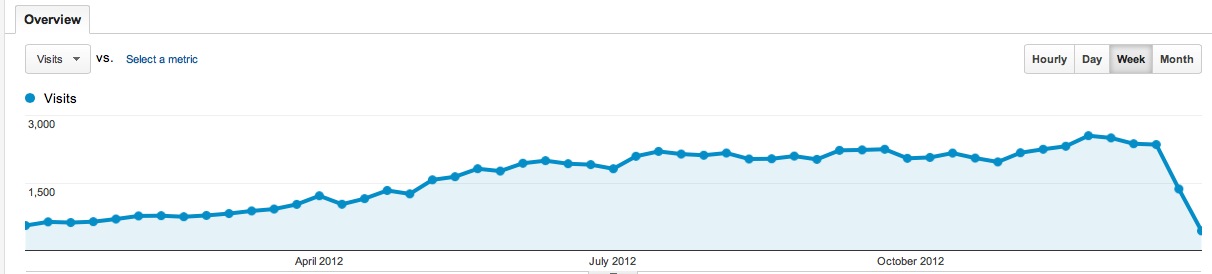
I also missed 10,000 in a month. I was on track at the beginning of December, but then I had a big drop during the holidays.My monthly break down:
December	 9085
November	 9827
October		 9427
September	 9010
August		 9440
July		 9151
June		 8171
May 		 7352
April		 5027
March		 3966
February	 3160
January		 2741
Here is my year end traffic graph from Google Analytics:
And here is the breakdown for the traffic:
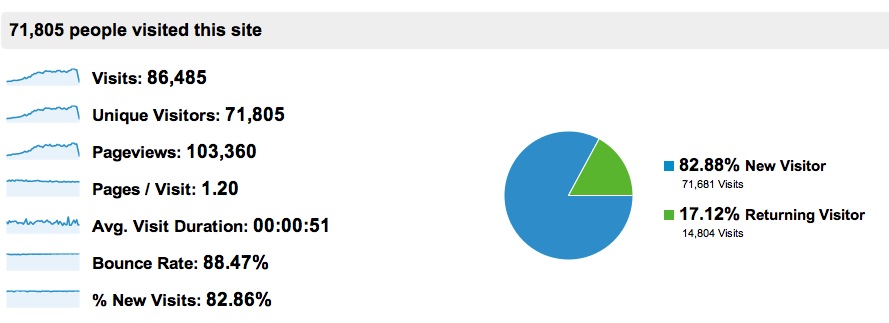
My 2013 goals are 2 posts per week/104 per year, as I said above. And 15,000 visitors a month. 15k may be out of my reach, but I would love it!
-
How to hide a field in a SharePoint EditForm.aspx page, append a replica, add a jQuery autocomplete, and put the selected value in the original field.
If you look at this old post, you can see a technique that I used to hide a form field, and then append read-only data after it. I wanted to use this technique to hide a field in a form, append a replica with a jQuery autocomplete, and based on the selected value from the drop down, put the value in the original filed. I actually wanted a comma separated concatenation of all the selected values (multiple lookups). For example, I wanted to create a form to capture all the people at a meeting, the the attendees field would be hidden and replaced with a input box that can lookup contact GUIDs from a CRM, and once the contact is selected, the GUID is appended to the contents of the original Attendees field.
First up, the code to hide the field I want:
	attendeesRow='<tr id="attendeesRow"> \
		<td nowrap="true" valign="top" width="190px" class="ms-formlabel"><h3 class="ms-standardheader"><nobr>Attendee<nobr></h3></td> \
		<td valign="top" class="ms-formbody" width="400px"> \
		<div id="AddAttendees"><input type="text" id="AddAttendeesSearchTextbox" /> (add an EXISTING CRM Contact)</div><br/> \
		</td></tr>';
	$('nobr:contains("Attendees")').closest('tr').hide();
	$('nobr:contains("Attendees")').closest('tr').before(attendeesRow);
Lines 1-5 is the code for the new replica field
Line 6 hides the existing field
Line 7 prepends the new replicate created in Lines 1-5Next is the jQuery code to attach an autocomplete to the new text box (AddAttendeesSearchTextbox). I am using a little knockout to organize my code and I use some of the observable arrays to make the page more dynamic.
$('#AddAttendeesSearchTextbox).autocomplete({
	    source: function (request, response) { VM.contactsSearchSourceREST(request, response) },
		delay: 600,
		minLength: 3,
		select: function(event, ui) {
			var selectedObj = ui.item;
			VM.addAttendee(selectedObj.fullname,"","",selectedObj.ParentCustomerIdName,"5",selectedObj.id)
			$(this).val("");
			return false;
		}
	});
And here is the javascript code (part of the view model) that is used for the source of the jQuery AutoComplete (CRM 2011 oData REST endpoint). Just a simple ajax call to CRM 2011.
	self.contactsSearchSourceREST = function (request, response) {
	    var serverUrl = "crm.server.com"
	    var ODATA_ENDPOINT = "/ORGNAME/XRMServices/2011/OrganizationData.svc";
	    var ODATA_EntityCollection = "/ContactSet";
	    var strSelect = "$select=FullName,ParentCustomerId,ContactId"
	    var strFilter = "$filter=substringof('" + request.term + "',FullName) and StateCode/Value eq 0"
	    var URL = serverUrl + ODATA_ENDPOINT + ODATA_EntityCollection + "?" + strFilter + "&" + strSelect
	    //alert(URL);
	    $.ajax({
	        type: "GET",
	        contentType: "application/json",
	        datatype: "json",
	        async: false,
	        url: URL,
	        beforeSend: function (XMLHttpRequest) {
	            XMLHttpRequest.setRequestHeader("Accept", "application/json");
	            XMLHttpRequest.setRequestHeader("Content-Type", "application/json")
	        },
	        success: function (data, textStatus, XmlHttpRequest) {
	            response($.map(data.d.results, function (item) {
	                return {
	                    label: item.FullName + ' (' + item.ParentCustomerId["Name"] + ')',
	                    value: item.FullName + ' (' + item.ParentCustomerId["Name"] + ')',
	                    fullname: item.FullName,
	                    ParentCustomerIdName: item.ParentCustomerId["Name"],
	                    id: item.ContactId
	                }
	            }));
	        },
	        error: function (XMLHttpRequest, textStatus, errorThrown) {
	            alert("failure " + errorThrown);
	            return false;
	        }
	    });
	}
Next is the knockout code (part of the view model) that is used to push the new contact guid into an observable array upon selecting the AutoCompleted contact
    self.Attendees = ko.observableArray();
    self.contact = function(fullname, firstname, lastname,ParentCustomerIdName, activitypartytype, guid) {
	this.fullname = fullname;
	this.firstname = firstname;
	this.lastname = lastname;
	this.ParentCustomerIdName = ParentCustomerIdName;
	this.role = activitypartytype;
	this.guid = guid;
    };
    self.addAttendee = function(fullname, firstname, lastname,ParentCustomerIdName, activitypartytype, guid) {
        self.Attendees.push(new self.contact(fullname, firstname, lastname,ParentCustomerIdName, activitypartytype, guid));
        return
    };
And finally the knockout code to concatenate the GUIDs and put them in the hidden (original) field (Attendees).
    ko.utils.arrayForEach(self.Attendees(), function(contact) {
        total = total + contact.guid + ';'
    	});
    total = total.substring(0, total.length - 1);
    $('input[type=text][title="Attendees"]').val(total)
    return total
	});
Pretty complex, lots of different techniques bing used (knockout, jQuery, ajax). Hope it makes sense.