
& {
$ErrorActionPreference = "silentlycontinue"
$vmwareSnap = get-pssnapin -name "VMware.VimAutomation.Core"
if (! $?) { add-pssnapin "VMware.VimAutomation.Core" }
}
This will add the PowerShell CLI tools if they exist.
Thanks to this thread
& {
$ErrorActionPreference = "silentlycontinue"
$vmwareSnap = get-pssnapin -name "VMware.VimAutomation.Core"
if (! $?) { add-pssnapin "VMware.VimAutomation.Core" }
}
This will add the PowerShell CLI tools if they exist.
Thanks to this thread
Driving me nuts that I can’t install RSAT on a machine with SP1 already installed!!!!!!!!
We have been moving mailboxes to a new Equallogic iSCSI SAN volume. The old information store is almost empty, except for one mailbox that did not get removed at the end of the move. It was sitting there with a red “X”. When we tried to delete it we received the error:
The Operation cannot be performed because this mailbox was already reconnected to an existing user.
ID no. c1034ad6
Exchange System Manager
I found this article, that suggested the it should be automatically removed once the “Exchange maintenance” runs. Since our maintenance runs over the weekend, and our “Keep deleted mailboxes for (days)” is set to 1 days, two weeks later, the mailbox should have been removed. But it wasn’t.
The problem ended up being that we had the check box “Do not permanently delete mailboxes and items until the store has been backed up” checked. This is great, but since there weren’t any mailboxes left in the information store, we had stopped backing it up!!!!
If you get the error above, and
Then your last mailbox will never be permanently deleted!!!
Obvious, but maybe someone will run across this and it will save them a couple of minutes scratching their head!
It drives me nuts that Grab.app defaults to .tif as the file type. And no matter how many times I try the recommended :
defaults write com.apple.screencapture type jpg
I can not get it to default to save as a jpg (and I tried jpeg). All I can guess is that this command does not work in 10.6. I don’t know. It drives me nuts.
So I sat down and created a quick OS X Service in Automator that takes files as an input and changes them to jpg. First in automator I selected “Service” as my workflow type
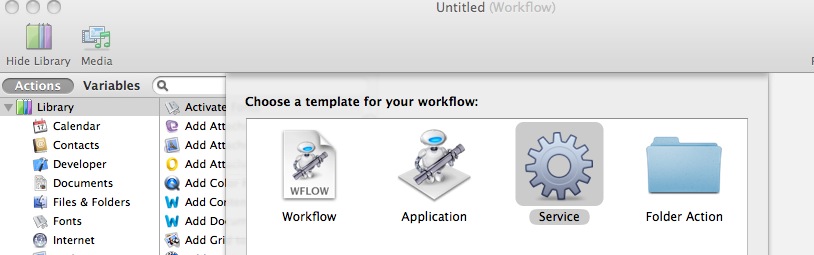
Next, I set the Service receives selected “files or folders” in “any application” values. Then I added the “Change Type of Images” action and set “To Type” to JPEG.
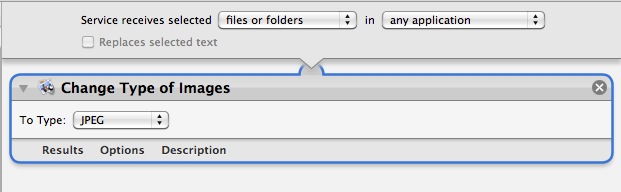
Hit save as “ChangeToJPEG” and now when I right click an annoying .tif, I have an option under Services to ChageToJPG
Grab.app is still annoying, but this makes it more tolerable.
This is an older project that I wanted to talk about. I worked on this last June. It was a longer post, so i procrastinated.
I wanted to create a “mash up” of data from a SharePoint List and a set of SQL tables. I tried several things, somehting that should be easy, was not (at least for me).
I decided to use SQL Server Integration Services (SSIS) to pull the data from the SharePoint list. I found the add-in to SSIS that made it easy to get data from a SharePoint List – SharePointListAdaptersSetupForSqlServer2005.msi. I ended up with a SSIS control flow that looked like this:

The first part deletes the contents of the destination table, second is the DataFlow piece:

The Data Conversion piece changes a “double-precision float” to a “unicode string”. All this is put together and creates a dtsx file (LoadSPList.dtsx) that can be executed by a Scheduled task:
DTEXEC.EXE /FILE “C:\LoadSPList.dtsx” /CONNECTION “connectionName”;”\”Data Source=DBName;Initial Catalog=DBName;Provider=SQLNCLI.1;Integrated Security=SSPI;Auto Translate=False;\”” /MAXCONCURRENT ” -1 ” /CHECKPOINTING OFF /REPORTING EWCDI
Finally, I just to created a report that contained a SQL query to relate the two different SQL tables.
Fun project, using three different technologies, SSIS, SQL and SharePoint.
We use the excellent Dell EMS Email Continuity product. It is fantastic. All our mail is replicated (via an SMTP sink and vaultbox) to their data center. In the event of and outage, our mail will route to their system, and they provide a way for the mail to be delivered to the user. One of the benefits, is that we only need to keep a limited about of mail on our exchange server (the rest in their archives).
We purge any mail that is over a year old. Maybe it is radical, but it works for us. Users prefer a snappier exchange server to messages from 10 years ago.
I do this using Recipient Policies. I can apply “Delete immediately” for messages older than a certain date, to users in AD groups. For example, I use the following in my filter rule:
memberOf=CN=MailBoxPurge-12M,DC=DOMAIN,DC=LOCAL
To verify that a user is receiving the policy, I do the following:
If the GUID you looked up in step 4 is in there, then you are good to go.
I wanted to restore our exchange environment in an off line VM. One of my goals was to take an information store and mount it – just to prove that I can access the data.
At our off site business continuity location, we have a Double-Take replica of our production Exchange 2003 server, including replicas of all our information stores. Those replicated store are on an Dell Equallogic SAN, which has snapshot capabilities.
I figured I could take a snapshot of the volume that contains the information store I want present it to my offline exchange, and just mount the store. When I tried to mount the store, I realized this would not be be easy. Time to do some learning.
First Error:
The log version stamp of logfile Drive:\PATH\mdbdata\E01.log does not match the database engine version stamp. The logfiles may be the wrong version for the database.
This one was easy. I was too lazy to install SP2 on the recovery server. Seems that I needed to as the logs are stamped with a version number. Quick Fix – install Exchange 2003 Sp2.
Next error:
ESA: The Exchange Virtual Server needs to be upgraded before coming online. From the Cluster Administrator program, select ‘Upgrade Exchange Virtual Server’ from the resource’s context menu to upgrade this Exchange virtual server.
Again another easy one. I just had to go into the cluster admin and right click “Upgrade Exchange Virtual Server”
Next error:
An internal processing error has occurred. Try restarting the Exchange System Manager or the Microsoft Exchange Information Store service, or both
I was using a Standby Exchange Cluster as described here. This error suggested that I did not have al my drives and paths right. For some reason this inherited Exchange 2003 cluster had the exchange program files installed to an “E:” drive. I added another drive and re-installed exchange with Sp2.
Next error:
Database recovery/restore failed with unexpected error -515.
Alright! This was a good one. I suspected my snapshot of a replicated information store might not be happy. How do I make it happy? So begins my adventures in replay logs. Here is the summary of what I learned. I understood how what to do, I just did not know how to do it!
If you suspect you are having an issue with an information store that you can not mount, run (here is your only warning – backup before you try anything.) :
eseutil.exe /mh MailStore.edb
If you see: State: Clean Shutdown – there is something else going on.
If you see: State: Dirty Shutdown – you need to get the mail store to a clean state.
AFIAK, you can get a mailstore to a clean state one of two ways. The first is to replay the missing logs and the second it to repair. The second results in loss of data.
To replay logs, look at the output of the above command again and you will see :
Log Required: 30012-30013 (0x753c-0x753d).
If you have these log files (they will have a prefix like E00 or E01), all you should need to do is run
eseutil.exe /r E01
This will find the files and replay them into the MailStore.
I tried this but I was missing a log file. I received the following error:
Operation terminated with error -515 (JET_errInvalidLogSequence, Timestamp in next log does not match expected) after 4.16 seconds.
Since I was missing a log file, and I had no other option to get it (like from a backup (this is all dev so there was need no to panic)). I had to resort to the “I loss data” method:
eseutil.exe" /p MailStore.edb
This took several hours and the output looks like this:
Initiating REPAIR mode…
Database: MailStore.edb
Streaming File: MailStore.STM
Temp. Database: TEMPREPAIR3692.EDBChecking database integrity.
The database is not up-to-date. This operation may find that
this database is corrupt because data from the log files has
yet to be placed in the database.To ensure the database is up-to-date please use the ‘Recovery’ operation.
Scanning Status (% complete)
0 10 20 30 40 50 60 70 80 90 100
|—-|—-|—-|—-|—-|—-|—-|—-|—-|—-|
……………………………………………Scanning the database.
Scanning Status (% complete)
0 10 20 30 40 50 60 70 80 90 100
|—-|—-|—-|—-|—-|—-|—-|—-|—-|—-|
……………………………………………Repairing damaged tables.
Scanning Status (% complete)
0 10 20 30 40 50 60 70 80 90 100
|—-|—-|—-|—-|—-|—-|—-|—-|—-|—-|
…………………….
Deleting unicode fixup table.
……………………..Repair completed. Database corruption has been repaired!
Repaired!
Now when I run:
eseutil.exe /mh MailStore.edb
I see “State: Clean Shutdown” and I can mount my MailStore. That was fun.
I was progressing along on with my offline Exchange install, and I ran into a problem when creating my Database Availability Group (DAG). I wanted to put the witness directory on a non exchange server and the instructions say:
If the witness server you specify isn’t an Exchange 2010 server, you must add the Exchange Trusted Subsystem universal security group to the local Administrators group on the witness server.
I added the correct group to the correct group and I run:
New-DatabaseAvailabilityGroup DAGNAME -witnessserver nonexchange.domain.local -witnessdirectry c:\DAGFSW
I received the following error:
WARNING: The Exchange Trusted Subsystem is not a member of the local Administrators group on specified witness server nonexchange.domain.local.
But it is in there, believe me I tripple checked. I also tried:
So I started reading and I came across this article. Devin suggests that all you need to do, like the documentation says, is add the Exchange Trusted Subsystem to the local administrators group, and NOT add the witness machine$ account to the Exchange Trusted Subsystem group. I agree with his argument as to why it is not necessary.
BUT. I think there might be a bug in SP1. My findings are:
So, in summary, it seems:
Of course there could be other things at play, but as of now, this is what I have found.