• PowerShell how to create an object (Note to Self)

    $test = new-object psobject -Property @{
    Name = 'John Doe'
    Age = 3
    Amount = 10.1
    MixedItems = (1,2,3,"a")
    NumericItems = (1,2,3)
    StringItems = ("a","b","c")
    }
    
    Another example:
    
    $Object = New-Object PSObject -Property @{
            LineNumber       = $LineNumber
            Date             = $TodayDate
            ServerName       = $svr
            DatabaseName     = $Database
            UserName         = $user.name
            CreateDate       = $CreateDate
            DateLastModified = $DateLastModified
            AsymMetricKey    = $user.AsymMetricKey
            DefaultSchema    = $user.DefaultSchema
            HasDBAccess      = $user.HasDBAccess
            ID               = $user.ID
            LoginType        = $user.LoginType
            Login            = $user.Login
            Orphan           = ($user.Login -eq "")
        }
    

    Second example taken from here


  • PowerShell to get all items in a SharePoint 2007 list via Web Services/SOAP

    I wanted to get a list’s contents in a SharePoint 2007 site via PowerShell. I ran into only one issue – how to handle the pagination. When creating the Xml to include the next page, I was running into formatting issues because the text contained a “=”. This link suggested that I create the XML element first then add the innerText after. Worked after that!

    TheBelow is my script to get the contents of a SharePoint 2007 list.


    $listName = "List Name"
    $xmlDoc = new-object System.Xml.XmlDocument
    $query = $xmlDoc.CreateElement("Query")
    $viewFields = $xmlDoc.CreateElement("ViewFields")
    $queryOptions = $xmlDoc.CreateElement("QueryOptions")
    $rowLimit = "50"
    $service = New-WebServiceProxy -UseDefaultCredential -uri http://sharepoint2007.comapny.com/_vti_bin/lists.asmx?WSDL
    $nextPage=$true
    while($nextPage){
    $list = $service.GetListItems($listName, "", $query, $viewFields, $rowLimit, $queryOptions, "")
    $list.data.row | select ows_ID,ows_Created,ows_Title
    if ($list.data.ListItemCollectionPositionNext){
    $nextPage=@"
    <Paging ListItemCollectionPositionNext="" />
    "@
    $queryOptions.set_InnerXml($nextPage)
    $queryOptions.ChildNodes[0].Attributes["ListItemCollectionPositionNext"].InnerText = "$($list.data.ListItemCollectionPositionNext)"
    }
    else {
    write-host "done"
    $nextPage=$false
    }
    }
    

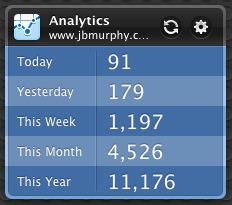
  • 4500 visits in March!

    Hope your vist was somewhat helpful!


  • PowerShell: redirect (System.Xml.XmlDocument).Save() to console

    I saw the code below somewhere, and could not remember how to do it later when I needed it. System.Xml.XmlDocument has a built in method to save the document to a file. I wanted to simulate that, but redirect it to the console. I finally found the code how to do it.

    $xml = new-object System.Xml.XmlDocument
    $xml.Save([Console]::Out)

    Now I know where to look to remind myself.


  • PowerShell to list SharePoint 2007 lists

    I wanted to get a quick list of all the lists in our SharePoint 2007 environment. With PowerShell 2, it is easy.

    $lists = New-WebServiceProxy -UseDefaultCredential -uri http://sharepoint2007.company.com/_vti_bin/lists.asmx?WSDL
    $lists.GetListCollection().List | select Title, Name
    

  • PowerShell to get a users DistinguishedName

    Why can’t I remember that to find a user’s Distinguished Name all i have to do is type the PowerShell cmdlet:

    Get-ADUser username

    And for a group:

    Get-ADGroup groupname

    And for a computer:

    Get-ADComputer computername

    Why can’t I remember that? It is also a quick way to find the OU of an object!


  • How to setup a remote syslog server in CentOS 6

    I wanted to have a cisco device send it’s logs to a Centos box for troubleshooting. I just wanted to do a “tail -f” against the error logs. Seems that syslog is now rsyslog in Centos 6. To setup rsyslog to accept syslog logs from other devices, you need to:

    1. uncomment out the following lines (not the description lines, the ones that start with “$”)

    # Provides UDP syslog reception
    $ModLoad imudp.so
    $UDPServerRun 514

    # Provides TCP syslog reception
    $ModLoad imtcp.so
    $InputTCPServerRun 514

    2. Add a line or two like these below to say where you want the logs written:

    :fromhost-ip,startswith,’192.168.1.’ /var/log/remote.log
    & ~
    :fromhost-ip,isequal,”192.168.1.33″ /var/log/servername.log
    & ~

    3. service restart rsyslogd

    4. add a hole in iptables for 514 (UDP and TCP)

    -A INPUT -m state –state NEW -m udp -p udp –dport 514 -j ACCEPT
    -A INPUT -m state –state NEW -m tcp -p tcp –dport 514 -j ACCEPT

    5. service iptables restart

    6. create a new logrotate.d config file in /etc/logrotate.d:

    /var/log/remote.log
    {
    daily
    rotate 5
    missingok
    notifempty
    sharedscripts
    postrotate
    /bin/kill -HUP `cat /var/run/syslogd.pid 2> /dev/null` 2> /dev/null || true
    endscript
    }


  • PowerShell code to query a table, and put the XML results into a SharePoint Document Library

    If you look at this prior post, I showed how you can use an xml file in a document library as a source for an input box’s jQuery autocomplete. I wanted to automate the creation of these XML files and upload them to a SharePoint Document Library. For example, I wanted to query Microsoft CRM for all our contacts, and have them appear as an autocomplete for a search input box. I wrote the following PowerShell script to automate this process:

    Function JBM-SQL-XMLQueryResultsToSharePointDocLibrary{
    PARAM([parameter(Mandatory = $true)]$SQLServerName,[parameter(Mandatory = $true)]$DatabaseName,[parameter(Mandatory = $true)]$Query,[parameter(Mandatory = $true)]$DocLibraryURL,[parameter(Mandatory = $true)]$FullPathFileName)
    $FileName=$FullPathFileName.split("\")[$FullPathFileName.split("\").Count -1]
    $xml=Invoke-Sqlcmd -ServerInstance $SQLServerName -database $DatabaseName -query "$Query" | ConvertTo-Xml -NoTypeInformation -As String
    [xml]$output=$xml -replace '<Property Name="([^"]+)">([^<]+)</Property>', '<$1>$2</$1>' -replace '<Property Name="([^"]+)"\s*/>','<$1/>'
    $output.save("$FullPathFileName")
    
    $webclient = New-Object System.Net.WebClient;
    $webclient.UseDefaultCredentials = $true
    $webclient.UploadFile("$DocLibraryURL/$FileName","PUT","$FullPathFileName")
    }
    

    I had to use this thread’s method to change the XML produced by ConvertTo-Xml. The default output puts the field name in to a Property Name tag.

    Example: Default = <Property Name=”Version”>0</Property> . I wanted it to be = <Version>0</Version>

    In theory, this can be used for any SQL query.